Model Context Protocol (MCP): A Complete Guide to Building Actionable AI Systems
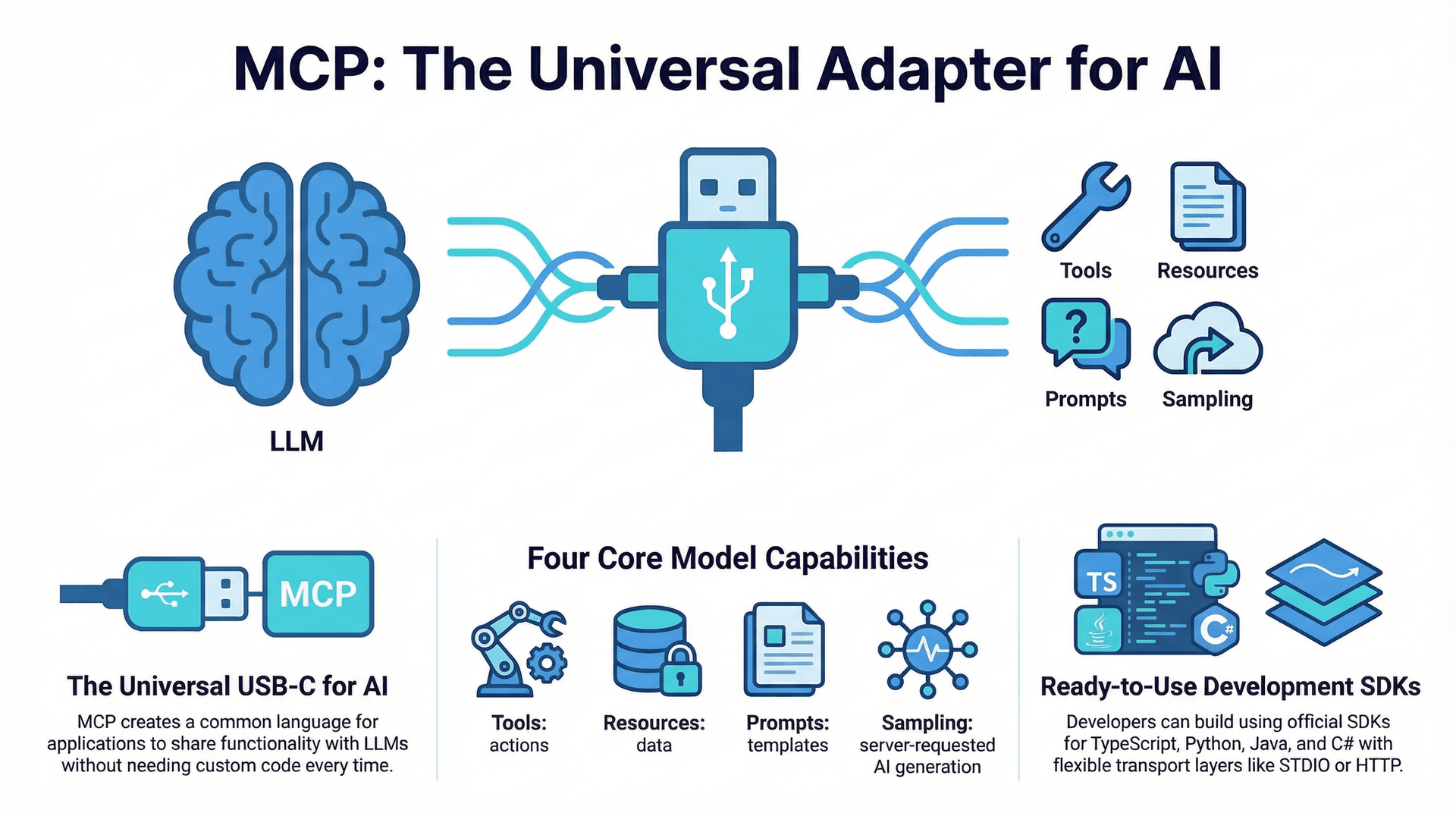
The rapid growth of Large Language Models (LLMs) has unlocked exciting possibilities—from smarter automation to more personalized user experiences. But when it comes to actually integrating these models into real-world applications, things can get tricky. Developers often struggle with maintaining consistency, managing context, and making different systems work smoothly together.
This is where a more standardized approach becomes important.
In this blog, we'll explore the Model Context Protocol (MCP)—an open framework designed to make it easier for applications to communicate with LLMs. MCP helps provide structured context and capabilities to AI models, allowing them to perform tasks more accurately and effectively.
Understanding the Model Context Protocol (MCP)
At its core, MCP is a way to standardize how applications share information and functionality with LLMs.
Think of it like a universal adapter for AI—similar to how a USB-C port lets different devices connect using the same standard. MCP creates a common language that allows AI systems and applications to work together seamlessly, without needing custom integrations every time.
MCP follows a client-server architecture:
- The application acts as a client
- It connects to one or more MCP servers
- These servers provide specific tools, data, or instructions that the AI can use
If you're familiar with APIs like REST or GraphQL, the idea is quite similar—MCP defines how this communication happens in a structured and predictable way.
Why MCP Matters
The real power of MCP lies in how it upgrades what LLMs can actually do.
Without MCP, an AI model can only respond to what you type. With MCP, it can:
- Fetch real data on demand
- Perform actions like creating records or sending messages
- Follow structured, pre-defined instructions reliably
In short, MCP moves AI from just talking to actually doing.
Core Components of an MCP Server
An MCP server exposes four types of capabilities to AI clients. Here's what each one means in plain terms:
- Tools:
- Tools are actions the AI can trigger—like functions it can call on your server.
- Examples range from simple things like "send an email" to complex ones like "generate a report from multiple data sources."
- When the AI spots a user request that matches a tool, it calls that tool on the server and gets back a result.
- Resources:
- Resources are data the AI can read—think of them as structured data endpoints.
- Examples: customer records, product lists, files, or specific rows in a spreadsheet.
- Instead of the AI guessing or hallucinating, it fetches real, up-to-date data from your server.
- Prompts:
- Prompts are pre-written instruction templates stored on the server.
- Rather than the AI crafting a prompt from scratch every time, it can pull a ready-made one—like a "summarize this document" template with a consistent format and style.
- This keeps AI behavior predictable and consistent across interactions.
- Samplings:
- Sampling flips the usual flow—here, the server asks the AI to generate something.
- For example, the server sends a prompt to the AI client, the AI generates a response, and the server uses that output for further processing.
- This is useful when the server needs AI-generated content (like fake data or a summary) but wants the client to handle the actual model call.
graph TD
      MCP_S((MCP Server))

      Tools["Tools
Executable Functions for AI.
Perform Actions, Automate Workflows."]
      Resources["Resources
Structured Data for AI.
Retrieve Information, Contextualize Conversations."]
      Prompts["Prompts
Pre-defined AI Instructions.
Guide AI Behavior, Ensure Consistency."]
      Samplings["Samplings
Server Requests AI Generation.
AI Provides Output to Server."]

      MCP_S <--> Tools
      MCP_S <--> Resources
      MCP_S <--> Prompts
      MCP_S <--> Samplings
Getting Started with MCP SDKs
You don't have to build the MCP communication layer from scratch. Official SDKs are available for popular languages including TypeScript, Python, Java, and C#.
These SDKs handle the protocol details for you, so you can focus on your actual business logic—whether that's connecting a database, exposing an API, or integrating with tools like Microsoft Copilot, Google Gemini, or Anthropic Claude.
Building an MCP Server: Step by Step
Let's walk through what it actually looks like to build an MCP server using Node.js and TypeScript.
Setting Up the Server Environment
Start by creating a standard Node.js + TypeScript project, then install the MCP SDK:
-
Install the MCP SDK
npm install @modelcontextprotocol/sdk -
Configure TypeScript (
tsconfig.json)
A standardtsconfig.jsonsets up module resolution, strict type checking, and output directories. Nothing special here—just a typical TypeScript project setup. -
Set Up
package.json
Add the usual dev dependencies and some helpful scripts:devDependencies:@types/node,tsx,typescript- Useful scripts:
"server:build": "tsc"— compile TypeScript"server:build:watch": "tsc --watch"— recompile on changes"server:dev": "tsx src/server.ts"— run without a build step
-
Create the Server Instance
ImportMcpServerfrom the SDK and create your server:import { McpServer } from '@modelcontextprotocol/sdk/server/mcp.js'; const server = new McpServer(); -
Configure the Server
Give your server a name, version, and declare what it can do:server.name = "my-awesome-mcp-server"; server.version = "1.0.0"; server.capabilities = { resources: {}, // Will be populated later tools: {}, // Will be populated later prompts: {}, // Will be populated later }; -
Wrap Everything in a
main()Functionasync function main() { // ... server logic ... } main(); -
Choose a Transport Layer
The transport layer controls how your server communicates:StdioServerTransport: Best for local tools where the client and server run on the same machine (via stdin/stdout).import { StdioServerTransport } from '@modelcontextprotocol/sdk/server/stdio.js'; const transport = new StdioServerTransport(); await server.connect(transport);- HTTP Streaming: Better for remote or web-based setups.
-
Use the MCP Inspector for Testing
The Inspector is a built-in debugging UI—think of it as Postman for MCP servers.- Install it:
npm i -D @modelcontextprotocol/inspector - Add a script to
package.json:
Note:"server:inspect": "set DANGEROUSLY_OMIT_AUTH=true && npx @modelcontextprotocol/inspector npm run server:dev"DANGEROUSLY_OMIT_AUTH=trueskips auth for local testing only—never use this in production.
- Install it:
-
Run It
Runnpm run server:inspect. The Inspector UI will launch and you can hit "Ping Server" to confirm everything is connected.
Empowering AI with Server-Side Tools
Tools are what let your AI agent actually do things—not just talk about them. Let's build a real example.
Defining the create-user Tool
Imagine an AI that can add new users to your system just from a natural language request. Here's how you'd build that:
-
Register the Tool
Useserver.tool()to define it:server.tool({ name: "create-user", description: "Create a new user in the database", // ... other properties ... }); -
Name & Description
name: A unique identifier the AI uses to look up this tool (e.g.,"create-user").description: A plain-English explanation that helps the AI know when to use it.
-
Define the Input Schema
Use Zod to define what data the tool needs—this also gives you automatic type safety and validation:import { z } from 'zod'; // npm i zod server.tool({ // ... params: z.object({ name: z.string().describe("The name of the user"), email: z.string().email().describe("The email address of the user"), address: z.string().describe("The physical address of the user"), phone: z.string().describe("The phone number of the user") }).describe("Parameters for creating a new user"), // ... }); -
Add AI Behavior Hints
These optional annotations guide the AI in using your tool safely and intelligently:Annotation Type What it means titlestringA friendly display name (e.g., "Create User").readOnlyHintbooleanfalsemeans this tool changes data;truemeans it only reads.destructiveHintbooleantruewarns the AI this could delete data—useful to trigger a confirmation before running.idempotentHintbooleanfalsemeans running this twice will create two users;truemeans the result is the same no matter how many times it runs.openWorldHintbooleantruemeans the tool talks to an external system like a database or API.
Implementing the Tool Logic
The execute function is where your actual business logic lives. Here's a working example that saves
users to a JSON file (you'd swap this for a real database in production):
import { promises as fs } from 'node:fs';
import path from 'node:path';

server.tool({
    name: "create-user",
    description: "Create a new user in the database",
    params: z.object({ /* ... */ }),
    execute: async ({ name, email, address, phone }) => {
        try {
            const dataPath = path.join(process.cwd(), 'data', 'users.json');
            let users: any[] = [];

            // Read existing users
            try {
                const fileContent = await fs.readFile(dataPath, 'utf-8');
                users = JSON.parse(fileContent);
            } catch (readError: any) {
                if (readError.code === 'ENOENT') {
                    // File doesn't exist yet — create the directory
                    await fs.mkdir(path.dirname(dataPath), { recursive: true });
                } else {
                    throw readError;
                }
            }

            // Generate a new ID and add the user
            const id = users.length > 0 ? Math.max(...users.map(u => u.id)) + 1 : 1;
            const newUser = { id, name, email, address, phone };
            users.push(newUser);

            // Save back to file
            await fs.writeFile(dataPath, JSON.stringify(users, null, 2), 'utf-8');

            return {
                content: [{ type: "text", text: `User ${id} created successfully.` }]
            };
        } catch (error) {
            return {
                content: [{ type: "text", text: `Failed to save user: ${error instanceof Error ? error.message : String(error)}` }]
            };
        }
    }
});
graph TD
A[User Input] --> B{AI Client e.g., Copilot Chat};
B -- Natural Language Query --> C{AI Model};
C -- Recognizes intent, identifies tool --> D{MCP Client};
D -- Call Tool (create-user, with params) --> E[MCP Server];
E -- Execute Tool Logic --> F[data/users.json Database or real DB];
F -- Update Data --> G[MCP Server];
G -- Return Success/Error Response --> D;
D -- Display Result --> B;
B -- Confirm Action/Show Output --> A;
Managing Data with MCP Resources
Resources let the AI read your data without running any code—think of them as queryable data endpoints that the AI can pull from to answer questions more accurately.
Registering a Static Resource
A static resource exposes a fixed dataset. Here's how to register one that returns all users:
import { promises as fs } from 'node:fs';
import path from 'node:path';

server.resource({
    name: "users",
    uri: "users://all",
    description: "A list of all registered users.",
    title: "All Users List",
    mimeType: "application/json",
    read: async () => {
        try {
            const dataPath = path.join(process.cwd(), 'data', 'users.json');
            const fileContent = await fs.readFile(dataPath, 'utf-8');
            const users = JSON.parse(fileContent);

            return {
                content: [{
                    uri: { href: "users://all" },
                    text: JSON.stringify(users, null, 2),
                    mimeType: "application/json"
                }]
            };
        } catch (error) {
            return { content: [] };
        }
    }
});
A few things to note:
- The
uriuses a custom protocol (users://)—this keeps it distinct within the MCP ecosystem. - The
mimeTypetells the AI client what kind of data to expect. - After registering a new resource, restart the MCP server so the AI client picks it up.
Dynamic Resource Templates
What if you want to fetch a specific user by ID? That's where dynamic templates come in. They use
placeholder variables in the URI (like {userId}) that the AI fills in at runtime:
import { ResourceTemplate } from '@modelcontextprotocol/sdk/server/mcp.js';

server.resource(new ResourceTemplate({
    name: "user-profile",
    uriTemplate: "users://{userId}/profile",
    description: "Retrieve a specific user's profile by ID.",
    title: "User Profile by ID",
    mimeType: "application/json",
    read: async (uri, { userId }) => {
        try {
            const dataPath = path.join(process.cwd(), 'data', 'users.json');
            const fileContent = await fs.readFile(dataPath, 'utf-8');
            const users = JSON.parse(fileContent);
            const user = users.find((u: any) => u.id === parseInt(userId, 10));

            if (!user) {
                return {
                    content: [{
                        uri: { href: uri.href },
                        text: JSON.stringify({ error: `User with ID ${userId} not found.` }),
                        mimeType: "application/json"
                    }]
                };
            }

            return {
                content: [{
                    uri: { href: uri.href },
                    text: JSON.stringify(user, null, 2),
                    mimeType: "application/json"
                }]
            };
        } catch (error) {
            return {
                content: [{
                    uri: { href: uri.href },
                    text: JSON.stringify({ error: `Failed to retrieve user profile: ${error instanceof Error ? error.message : String(error)}` }),
                    mimeType: "application/json"
                }]
            };
        }
    }
}));
When an AI client like GitHub Copilot uses this template, it'll ask the user "What's the user ID?" and then automatically fill in the URI before making the request.
graph TD
      A[User Query] --> B{AI Client};
      B -- Request Resource e.g., users://4/profile --> C[MCP Client];
      C -- Read Resource users://{userId}/profile --> D[MCP Server];
      D -- Identify userId e.g., 4 --> E[Data Source users.json];
      E -- Retrieve User 4 Data --> F[MCP Server];
      F -- Return User Data --> C;
      C -- Display Data to User --> B;
Guiding AI with Predefined Prompts
Prompts let you pre-write the instructions the AI receives for specific tasks. Instead of users having to carefully craft prompts themselves, they can invoke a server-stored template with just a few arguments.
Defining a Prompt
Here's a prompt that generates fake user data given a name:
import { z } from 'zod';

server.prompt({
    name: "generate-fake-user",
    description: "Generate a fake user based on a given name and return it as a JSON object.",
    argsSchema: z.object({
        name: z.string().describe("The name to use for the fake user.")
    }).describe("Arguments for generating a fake user"),
    cb: async (args) => {
        const { name } = args;
        return {
            messages: [{
                role: "user",
                content: [{
                    type: "text",
                    text: `Generate fake user data for a person named ${name}. The user should have a realistic name, email, address, and phone number. Return this data as a JSON object with no other text or formatting, so it can be parsed directly.`
                }]
            }]
        };
    }
});
The callback returns a messages array—the same structure LLMs expect. The role field
says who's "speaking" (usually "user"), and content holds the actual text. Template
literals like ${name} make the prompt dynamic.
In GitHub Copilot Chat, you invoke this prompt with a slash command:
/mcp.<server-name>.generate-fake-userEnabling AI-Generated Content through Sampling
Before diving in, here's an important thing to understand: the MCP server does not have direct access to any AI model. It's just a backend — it stores data, runs tools, and returns results. The client (e.g., GitHub Copilot, your CLI app) is the one that holds the connection to the actual LLM.
So what happens when the server itself needs AI to do something — like generating realistic fake user data?
This is where sampling comes in. It's a reverse request: instead of the client asking the server to run a tool, the server asks the client to run a prompt through its AI model and return the result.
Think of it like this:
The server is a chef who doesn't have a phone. When it needs to order ingredients, it asks the waiter (client) to make the call. The waiter dials the supplier (AI model), gets the answer, and brings it back to the kitchen (server).
The flow looks like this:
- A user asks the AI client: "Create a random user."
- The client calls the
create-random-usertool on the MCP server. - The server realizes it needs AI to generate the fake data — but it can't call the AI itself.
- So the server sends a
sampling/createMessagerequest back to the client, with the prompt: "Generate a fake user as JSON." - The client receives it, runs the prompt through its LLM (e.g., Gemini or Claude).
- The AI responds with the generated JSON. The client sends that back to the server.
- The server parses the JSON, saves the new user, and returns a success message.
In code, the server initiates sampling like this inside a tool's execute function:
execute: async () => {
    try {
        // Step 1: Ask the client to run this prompt through its AI model
        const result = await server.server.request({
            method: "sampling/createMessage",
            params: {
                messages: [{
                    role: "user",
                    content: [{
                        type: "text",
                        text: "Generate fake user data. The user should have a realistic name, email, address, and phone number. Return this data as a JSON object with no other text or formatter so it can be used with JSON.parse."
                    }]
                }]
            },
            resultSchema: CreateMessageResultSchema
        });

        // Step 2: Get the AI's response text from the client
        const aiResponseText = result.content[0].text;

        // Step 3: Strip markdown backticks — LLMs often wrap JSON in ```json ... ```
        const cleanedText = aiResponseText
            .trim()
            .replace(/^```json\s*/, '')
            .replace(/\s*```$/, '');

        // Step 4: Parse the cleaned JSON
        let fakeUser: any;
        try {
            fakeUser = JSON.parse(cleanedText);
        } catch (jsonError) {
            throw new Error("AI generated invalid JSON.");
        }

        // Step 5: Save the generated user to the data store
        const createdUserResult = await createUser(fakeUser);
        return createdUserResult;
    } catch (error) {
        return { content: [{ type: "text", text: `Failed to create random user via AI: ${error instanceof Error ? error.message : String(error)}` }] };
    }
}
The key line is server.server.request({ method: "sampling/createMessage", ... }). This is the
server reaching back to the client and saying: "You have access to the AI — please run this for me."
The client handles the actual LLM call and delivers the result back.
Building an MCP Client
The client is what connects users (or applications) to your MCP server. Let's build a simple CLI client that can call tools, read resources, and run prompts.
Connecting to the Server
-
Import the client libraries:
ClientandStdioClientTransportfrom the SDK. -
Create and connect the client:
import { Client } from '@modelcontextprotocol/sdk/client/mcp.js';
import { StdioClientTransport } from '@modelcontextprotocol/sdk/client/stdio.js';
import "dotenv/config";

async function runClient() {
    const mcp = new Client({
        name: "my-mcp-client",
        version: "1.0.0",
        capabilities: {
            sampling: {} // This client can handle AI sampling requests
        }
    });

    const transport = new StdioClientTransport({
        command: "npm",
        args: ["run", "server:dev"],
        stderr: 'ignore'
    });

    await mcp.connect(transport);
    console.log("MCP Client connected to server.");
}
runClient();
Discovering What the Server Offers
Once connected, fetch everything the server provides in one shot:
mcp.listTools()mcp.listPrompts()mcp.listResources()mcp.listResourceTemplates()
Building a CLI Menu
Use @inquirer/prompts to create an interactive menu (install with npm i @inquirer/prompts
dotenv). A simple while(true) loop keeps the menu running, and await select
presents options like "Query AI," "Tools," "Resources," and "Prompts."
Calling Tools from the Client
- Let the user pick a tool from the list.
- Loop through the tool's schema to figure out what inputs are needed.
- Prompt the user for each one using
await input. - Call the tool:
await mcp.callTool({ name: tool.name, arguments: args }) - Display the result.
For example, when the user picks "Create User," the client will ask for name, email, address, and phone—then the server responds with "User X created successfully."
Reading Resources from the Client
- Show the user a list of available resources (name, URI, description).
- If the URI has dynamic parameters (like
{userId}), use a regex to detect them and prompt the user to fill them in. - Call
mcp.readResource(resolvedUri)to fetch the data. - Pretty-print the JSON with
JSON.stringify(parsedJson, null, 2)for readability.
Invoking Server-Defined Prompts
- List available prompts and let the user pick one.
- Collect required arguments (e.g., "Enter a name for the fake user").
- Fetch the prompt from the server:
mcp.getPrompt(prompt.name, arguments) - Show the generated prompt text to the user, then ask: "Would you like to run this prompt?"
- If yes, send it to an AI model using the AI SDK:
import { createGoogleGenerativeAI } from '@ai-sdk/google';
// ...
const result = await generateText({
    model: google("gemini-1.5-flash"),
    prompt: message.content.text
});
console.log(result.text);
The AI SDK gives you a unified interface for multiple AI providers—swap Gemini for Claude or another model with minimal code changes.
Handling Sampling Requests on the Client
In the Model Context Protocol (MCP) setup, sampling requests allow the MCP server to ask the client (e.g., a CLI app or AI interface) to generate content using an AI model, since the server itself doesn't have direct access to LLMs. Here's a clear breakdown of how the client handles these requests:
1. Setup and Listening for Requests
- The client uses the MCP SDK to set up a request handler specifically for sampling requests.
- This is done with
mcp.setRequestHandler, which listens for incomingsampling/createMessagerequests from the server. - Example code snippet:
mcp.setRequestHandler("sampling/createMessage", async (request) => {
        // Handler logic goes here
});- When the server sends a sampling request (e.g., during a tool execution that needs AI-generated content), this handler intercepts it.
2. Processing the Request
- The handler receives the request, which includes a
messagesarray (similar to LLM input formats) containing the prompt or instructions the server wants the AI to process. - The client extracts the prompt text (e.g., "Generate fake user data as JSON").
- Optionally, the client can display the prompt to the user for review or confirmation, especially if the request involves actions like creating data. This adds a layer of user oversight.
3. Generating the AI Response
- The client uses its integrated AI SDK (e.g., Google's Generative AI or another provider) to run the prompt through an LLM.
- It calls a function like
generateTextwith the model's configuration and the prompt text. - Example flow:
- The client sends the prompt to the AI model (e.g., Gemini or Claude).
- The AI generates a response (e.g., JSON data for a fake user).
- The client captures the output text from the AI.
4. Returning the Response to the Server
- After generating the content, the client formats and returns a structured response back to the server.
- The response follows a specific schema, including:
role: Typically "assistant" or "user" (indicating the AI's response).model: The name of the AI model used (e.g., "gemini-1.5-flash").stopReason: Why the generation stopped (e.g., "endTurn" for completion).content: An object withtype("text") andtext(the generated content).
Example response structure:
return {
        role: "assistant",
        model: "gemini-1.5-flash",
        stopReason: "endTurn",
        content: { type: "text", text: generatedResponseText }
    };
Key Benefits and Flow
- User Confirmation: For sensitive actions, the client can prompt the user (e.g., "Confirm generating a random user?") before proceeding, ensuring safety.
- End-to-End Flow: Server → Client (sampling request) → AI Model → Client (response) → Server (uses response) → Client (final output).
- Error Handling: If the AI fails or returns invalid data, the client can handle errors and notify the server.
- This mechanism enables the server to leverage the client's AI capabilities without needing its own LLM integration, making MCP flexible for various setups.
graph TD
    A[User Input or Query] --> B[MCP Client CLI]
    B --> C[AI Model Integration via generateText]
    C --> D[External AI Model e.g. Gemini]

    subgraph DirectResponse[Direct AI Response]
        D --> C2[AI returns text response]
        C2 --> B2[Client displays text to user]
    end

    subgraph SamplingFlow[Server Tool via Sampling]
        D --> E[MCP Server]
        E -- Server has no AI - sends sampling request --> F[Client Request Handler]
        F -- Shows AI prompt to user for confirmation --> B3[User confirms]
        B3 --> F2[Handler returns user response to server]
        F2 --> E2[Server uses response to execute tool]
        E2 --> G[Data Store]
        E2 --> B4[Server returns final result to client]
    end
Conclusion
MCP is a practical, well-designed standard that makes it much easier to build AI-powered applications that actually do things—not just generate text.
By giving you clear primitives—Tools for actions, Resources for data, Prompts for instructions, and Samplings for server-initiated AI generation—MCP lets you build AI integrations that are consistent, debuggable, and composable.
Whether you're building an internal tool, a developer productivity feature, or a full AI agent, MCP gives you a solid foundation to work from—and the ecosystem of SDKs and compatible clients (like Copilot, Claude, and Gemini) means you're not starting from scratch.
Further Reading
- Advanced MCP Security Features
- Integrating MCP with Cloud-Native Applications
- Designing Effective AI Tooling for Enterprise Applications
- Exploring Different AI Transport Layers beyond STDIO and HTTP Streaming
- Best Practices for AI Prompt Engineering in MCP Environments